Download YouTube subtitles as a file
- Paste the video link — Copy the video's address from the address bar on a computer, or with Share and then Copy link in the YouTube app; youtu.be and Shorts links work too. Paste it into the box further down and press Get transcript; the result opens on its own page. The captions appear with a start time on every line, and when the video has tracks in several languages, tabs above the text let you switch.
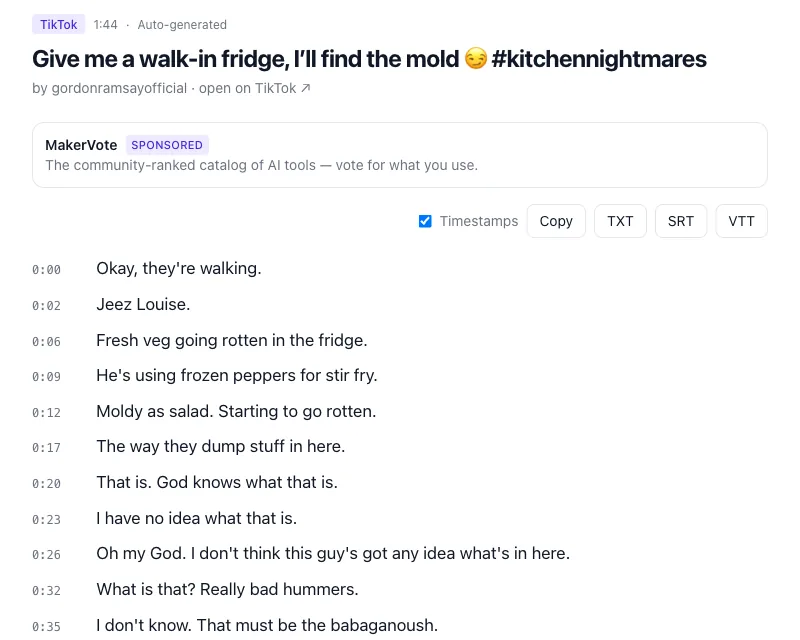
- Pick SRT or VTT — The row above the transcript holds the Timestamps checkbox and the Copy, TXT, SRT and VTT buttons. For a subtitle file, click SRT or VTT; both carry the start and end time of every line, so the checkbox does not affect them. With several caption tracks, pick the language in the tabs first: the download takes the track that is showing, and each tab says Captions or Auto-generated next to its language code.
- Download the file — The browser saves the file, named after the video's title with an .srt or .vtt extension. Check the first lines against the video, then load it into your editor or subtitle tool. For the words without the timing, untick Timestamps and click TXT.
Save the captions as SRT, VTT or TXT
Paste the link to the video below and press Get transcript. Captioned videos have no length limit; a video with no captions at all is transcribed from its audio when it is 10 minutes or shorter. The YouTube transcript generator offers the same box on a page of its own.
SRT vs VTT vs TXT
SRT (SubRip) is the format almost everything accepts: numbered blocks, each with a timing line such as 00:01:02,500 --> 00:01:05,000 and the text below it. Editors, players, subtitle tools and YouTube Studio's subtitle upload all read it; when in doubt, take SRT. VTT (WebVTT) is the same idea written for the web: a WEBVTT header, a dot instead of the comma in the timing, and support for styling that browsers understand; HTML5 players and course platforms ask for it. The two convert into each other without loss and most tools open both, so take whichever the destination asks for. TXT is not a subtitle format: the words, one caption line per row, with a bracketed start time such as [1:02] in front while the Timestamps box is ticked. It is for notes, quotes and summaries; the YouTube video to text guide covers that use.
Uploaded subtitles vs auto-generated captions
For a subtitle file, the kind of track matters (YouTube says subtitles in Studio and captions in the player for the same timed text; this guide uses both). Subtitles the uploader wrote or had made come as sentence-length cues with punctuation, capitals and sometimes speaker names or sound descriptions; as an SRT they are ready to use. YouTube's automatic captions are speech recognition: mostly right on clear speech, but delivered as short fragments without punctuation, with names and technical terms spelled by ear. As they are, they flash by in pieces, so plan a pass in a subtitle editor to merge fragments into sentences, add punctuation and fix misheard words; the timing, the tedious part, is already done. To tell them apart: YouTube marks the automatic track (auto-generated) in the Subtitles/CC menu, and the result page labels each track Captions or Auto-generated. When both exist, download the uploaded one.
Subtitles in another language
A video can carry several genuine caption tracks, uploaded by the creator or generated by YouTube in the spoken language; each is a separate file and shows up as its own tab on the result page, so a Spanish and an English track download separately. What the player offers on top of that is Auto-translate, in the gear icon under Subtitles/CC: a machine translation of an existing track, made on the fly. It is not a track stored with the video, so YouTube has no file to give you and ClipToTranscript does not fetch it: it reads the tracks the video actually has, uploaded or auto-generated, nothing translated. For subtitles in a language the video lacks, download the original track as SRT and translate its text lines, leaving the timing alone.
Why YouTube has no download button
The watch page can show captions and, in the transcript panel, let you read them, but caption files belong to the channel and only the owner can export them. For everyone else the built-in route is copying from the transcript panel (how to open it) into a text file. That yields the text and a start time per line, not a subtitle file: the panel copies no end times, and turning the result into an SRT by hand means typing every cue's timing, fine for a quote, not for a twenty-minute video. That gap is what the converter above fills. If you are at home in a terminal, the open-source yt-dlp downloads caption tracks too, with its --write-subs, --write-auto-subs and --skip-download options.
Your own videos: the official way. In YouTube Studio, open Subtitles in the left menu and click the video. Next to the language you want, click Edit (Duplicate and edit for the automatic track), then Options and Download subtitles, and choose .vtt, .srt or .sbv; the ⋮ menu at the end of a track's row usually offers the same Download without opening the editor. It is the only place YouTube itself hands out a caption file.
Questions
- Do the timestamps match the video?
- Yes: they are YouTube's own caption timings, the start and end of every cue as the player shows them, passed through unchanged. If you trim the start of the video later, shift the subtitles by the same amount.
- Can I download auto-generated captions?
- Yes. When a video has only the automatic track, that is what you get, labelled Auto-generated. Expect short fragments without punctuation, as described above, and plan a clean-up pass before you publish them.
- Is there a limit on video length?
- Not for videos with captions: the captions are fetched whole, so a three-hour lecture works. The 10-minute limit applies only to videos with no captions at all, which have to be transcribed from the audio. Playlists are not accepted; paste one video at a time.
- Can I edit the SRT before using it?
- Yes: an SRT or VTT is a plain-text file, so any text editor opens it, and a subtitle editor lets you fix words, merge cues and nudge timings against the video. Keep the structure (number, timing line, text, blank line) and the file stays valid.
- Does this work for YouTube Shorts?
- Yes. A Short has the same caption tracks as any other YouTube video, so paste the Short's link and download SRT or VTT as usual, here or on the YouTube Shorts transcript page. The Shorts player itself has no transcript panel, so the link is the only route.