Which way fits depends on what you need. If you are on a computer and want a passage or a quote, YouTube's own transcript panel is the fastest and needs no other site (way 1). If you want the whole transcript as a file, need the timing in SRT or VTT form, are on a phone, or the video is a Short, paste the link into the converter below (way 2). And if the video has no captions at all, the text has to come from the audio itself (way 3).
Way 1: copy YouTube's own transcript
On a computer, open the video on youtube.com, click "...more" at the end of the description under the title, scroll down past the description text and chapters, and click "Show transcript". A panel opens next to the player with every caption line and its start time; select the lines you want and copy them with Ctrl+C or Cmd+C. This costs nothing and needs no other site, but it has limits: the text arrives one caption line per row, the Shorts player has no such button, the YouTube app does not let you select the panel's text, and nothing appears when a video has no captions. The full guide walks through it with screenshots, phone included.
Way 2: download the text as a file (TXT, SRT, VTT)
Turn a YouTube video into a text file
- Copy the video link — On a computer, copy the address from the browser's address bar, or click Share under the video and then Copy. In the app, tap Share, then Copy link. Any YouTube address works: youtube.com/watch, youtu.be, /shorts, /live and /embed links.
- Paste it into ClipToTranscript — Paste the link into the box below and press Get transcript. The captions are fetched in a few seconds. If the video has caption tracks in several languages, pick the one you want from the language tabs above the text.
- Choose the format and download — Above the transcript sit a Timestamps checkbox and four buttons: Copy, TXT, SRT and VTT. Copy puts the text on your clipboard; TXT saves plain text, with timestamps if the box is ticked; SRT and VTT are subtitle files and always keep the timing.
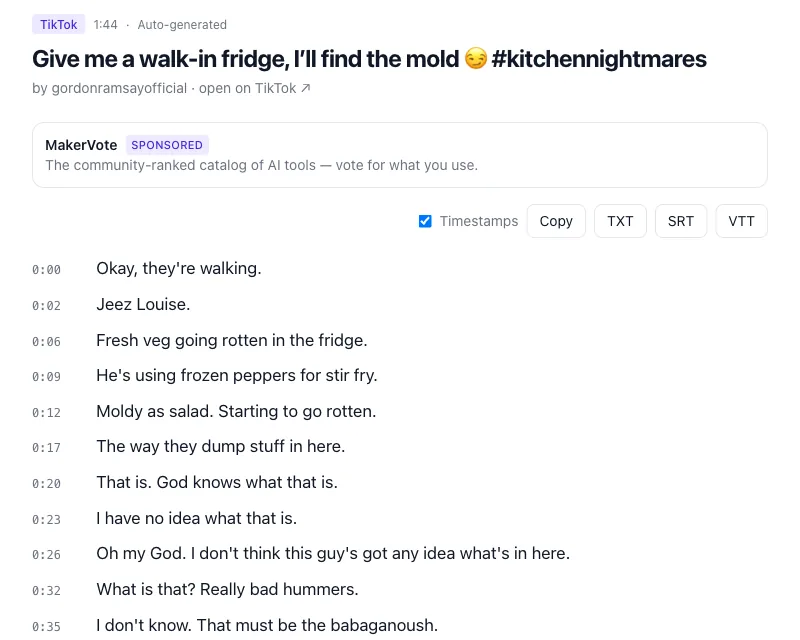
Convert a YouTube video to text
Paste the link below and press Get transcript: the transcript appears with timestamps, ready to copy or to download as TXT, SRT or VTT. It is the same converter as the YouTube transcript generator, embedded here.
Way 3: videos with no captions at all
Some videos have no captions: the uploader deleted them, the video is a fresh upload whose automatic captions are still processing, it is a live stream, or the speech is in a language YouTube does not auto-caption. Then there is no transcript to copy, and the text has to come from the audio. ClipToTranscript does this automatically: when a video has no caption track, it transcribes the audio with an open-source speech-recognition model on its own servers, usually in 10–60 seconds, for videos up to 10 minutes long. Longer videos without captions are not supported yet. For those, either wait — YouTube usually generates automatic captions within hours of an upload, in the languages it supports, so a fresh video may simply need time — or turn on the live captions built into Windows, Android or macOS while the video plays. The any video guide shows where they are, and what to do with a video file of your own.
Which format do you need?
TXT is plain text: the right choice for notes, quotes, a document, a search through a long talk, or pasting into an AI assistant for a summary — untick Timestamps first if you only want the words. SRT is the subtitle format that video editors and most platforms accept: numbered blocks, each with a start time, an end time and the text, which CapCut, Premiere Pro, DaVinci Resolve and YouTube's own subtitle upload all read. VTT (WebVTT) is the subtitle format of the web: the HTML5 video player and many web and course platforms expect it. SRT and VTT always contain the timing, since a subtitle without it would be useless; if you only want the timing for reference, TXT with the Timestamps box ticked gives you a start time on every line.
Auto-generated captions need a clean-up pass before you publish anything from them. Read the text while the video plays and fix names, numbers and product terms — that is where speech recognition slips most. Delete or replace tags such as [Music] and [Applause], add punctuation and capital letters, and join the short caption lines into paragraphs (in most editors, a find-and-replace of line breaks with spaces does most of the work). Keep the timestamped version alongside so you can jump back to any passage you are unsure about.
Questions
- Is it free?
- Yes. There is no account, no watermark and nothing to install; the site is supported by clearly labelled sponsor cards.
- How long does it take?
- A video with captions comes back in a few seconds, whatever its length, because the captions already exist. A video without captions is transcribed from the audio, usually in 10–60 seconds, and is limited to 10 minutes.
- Does it keep the timestamps?
- Yes. Every line carries its start time on the result page; SRT and VTT downloads always include the timing, and for TXT and Copy the Timestamps checkbox decides.
- Can I convert a whole playlist or channel?
- Not yet — one video at a time. Playlist and channel pages are not accepted, so paste the address of each video separately.
- What about private or unlisted videos?
- Private videos cannot be converted: nobody but the owner can open them, so there is no caption track to read. Unlisted videos usually work, since anyone with the link can watch them. If the video is yours, YouTube Studio lets you download the captions directly: Subtitles, then the track's ⋮ menu, then Download.