Get the transcript of a YouTube video on a computer
- Open the video on youtube.com — Use a desktop browser and open the normal watch page: an embedded player on another site has no transcript, and neither does the Shorts player.
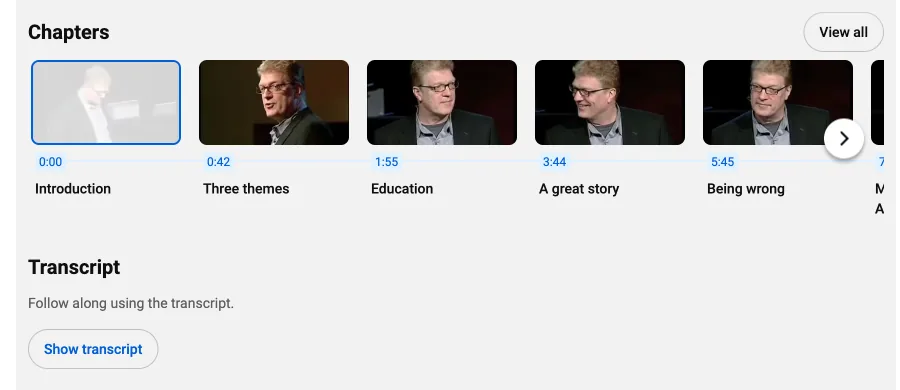
- Expand the description — Under the video title, click "...more" at the end of the description. It unfolds to its full length, with a few extra sections at the bottom — the transcript is one of them.
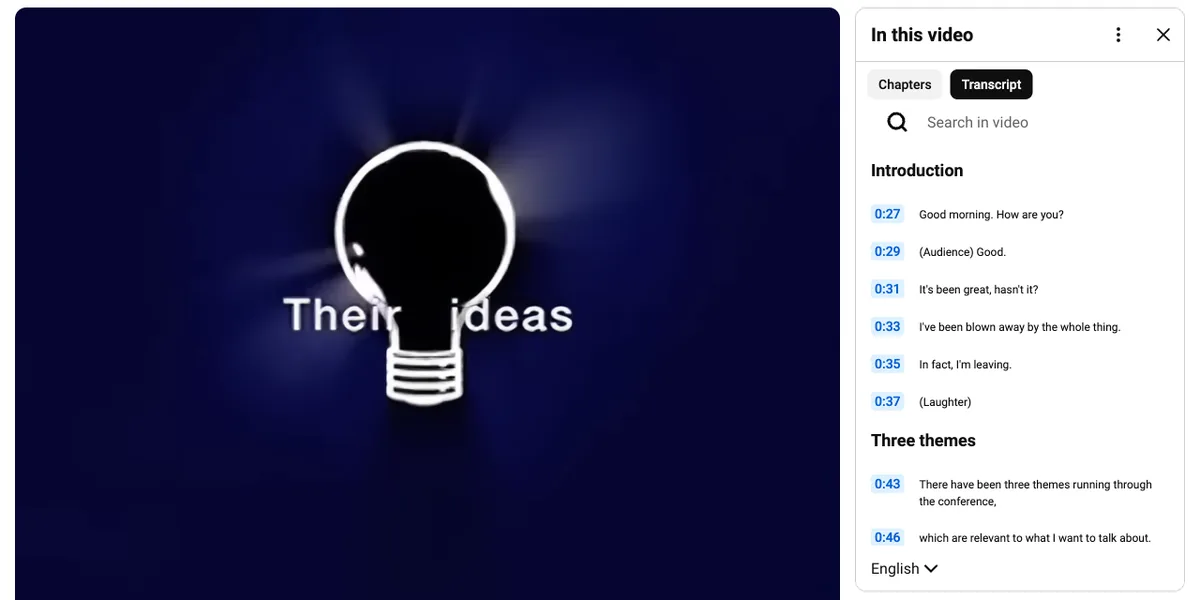
- Click "Show transcript" — Scroll down the expanded description, past the chapters if the video has any. Just above the channel card you will find the heading "Transcript", the line "Follow along using the transcript" and the "Show transcript" button. Click it: the panel opens to the right of the player, or below it if the window is narrow.
- Copy what you need — Every line carries its start time, and clicking one jumps the video to that moment. To copy, drag from the first line you want to the last and press Ctrl+C or Cmd+C. The timestamps come along by default; to leave them out, open the ⋮ menu at the top of the panel and choose "Toggle timestamps" before you select. The panel copies line by line — each caption line, and each timestamp if you kept them, on a line of its own — so paste into a text editor and join the lines when you want paragraphs.
On your phone
In the YouTube app, tap the video title to open the description sheet, scroll to "Transcript" and tap "Show transcript". The transcript opens in the same sheet and tapping a line jumps the video there, but the lines cannot be selected as text, so it is no use for copying. Two ways around it: open the video in your phone's browser and request the desktop site (Chrome: the ⋮ menu, then "Desktop site"; Safari: the "..." or "AA" button in the address bar, then "Request Desktop Website") to get the selectable panel from the steps above, or paste the link into the tool further down, which returns the whole transcript in one piece.
When there is no "Show transcript" button
The button only appears when the video has at least one caption track, so if it is missing after you expand the description, the video most likely has none. The usual reasons: the uploader deleted the captions in YouTube Studio; the video is a live stream (during the stream and often for a while after); it is a music video that nobody captioned; or it went up a short while ago and YouTube's automatic captions are still being generated, which can take up to a few hours. Shorts are a case of their own: their player has no transcript button even when captions exist, so on a computer open the Short as a normal video — replace /shorts/ in the address with /watch?v= — and expand the description there. When a video truly has no captions, YouTube has nothing to show; the only route left is speech recognition, below.
Get the whole transcript as a file
Paste the YouTube link below and press Get transcript. ClipToTranscript reads the video's caption tracks — manual or auto-generated, in every language YouTube offers — and shows the text with timestamps, ready to copy or download as TXT, SRT or VTT. When a video has no captions at all, it transcribes the audio with an open-source speech-recognition model instead, for videos up to 10 minutes long. Free, no account, no watermark, on a phone too. More on the YouTube transcript generator page.
Manual vs auto-generated transcripts
YouTube has two kinds of caption track, and the panel shows whichever the video carries. Captions the uploader typed or uploaded are the reliable kind: punctuation, correct names, sometimes speaker labels. Auto-generated captions are YouTube's own speech recognition: usually right on clear speech, but with little or no punctuation, names, brands and technical terms guessed by sound, and music turned into tags such as [Music]. The panel's language dropdown tells them apart: the automatic track is labelled "(auto-generated)"; on a ClipToTranscript result, the label at the top says "Captions" or "Auto-generated". When a video has both, prefer the uploaded track, and treat an auto-generated transcript as a draft to check against the audio before you quote it.
A transcript is the video's words in text form; the copyright stays with the creator. Reading it, saving it for reference, quoting a passage with credit and a link, or using it for research and accessibility is normal use; republishing the whole text, or passing it off as your own, is not. The same applies to transcripts you get here; see the Terms.
Questions
- Why can't I see "Show transcript"?
- It only exists when the video has a caption track, and it hides inside the expanded description: click "...more" under the title and scroll down past the description text and chapters; the button sits just above the channel card. If it is still not there, the uploader deleted the captions, the video is a live stream, or the automatic captions are not ready yet.
- Can I get the transcript with timestamps?
- Yes. YouTube's panel shows a start time for every line and includes them when you copy (use "Toggle timestamps" in the ⋮ menu to hide them). An SRT or VTT download always keeps the timing; TXT can include it or not — see YouTube video to text for which format suits what.
- Can I get a YouTube transcript in another language?
- Only in the languages the video actually has captions for: the dropdown at the bottom of the transcript panel lists every caption track, and ClipToTranscript shows the same tracks as tabs. The player's "Auto-translate" option (the gear icon, then Subtitles/CC) translates the captions on screen only; the transcript panel does not offer it. For a translation, paste the transcript into a translator or an AI assistant.
- Does this work for YouTube Shorts?
- The Shorts player has no transcript button. On a computer, open the Short as a normal video (replace /shorts/ in the address with /watch?v=) and use the button there. On a phone, or when you want a file, paste the Shorts link into the YouTube Shorts transcript tool, which reads the same caption tracks.
- Is it legal to copy a YouTube transcript?
- Copying a transcript for your own reference, study or research, and quoting short passages with credit, is generally allowed under fair-use and fair-dealing rules. Republishing a whole transcript needs the creator's permission, because the words are theirs. This is general information, not legal advice.