Turn a TikTok video into text in three steps
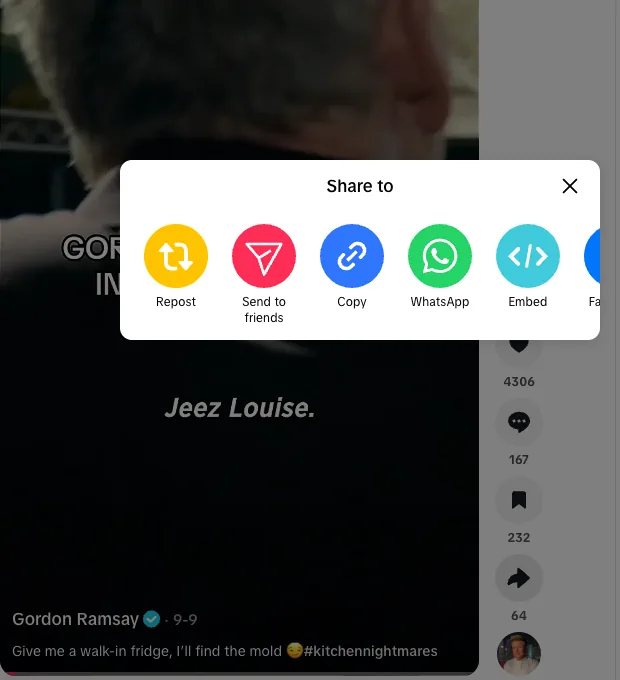
- Copy the video link — In the TikTok app, open the video, tap the Share arrow in the column on the right and choose Copy link. On tiktok.com the same arrow sits in the column beside the video: click it and pick Copy in the Share to sheet, or simply copy the address from the browser's address bar. Any form of the link works, including the short vm.tiktok.com and vt.tiktok.com links the app hands out, which resolve to the full video address on their own. Profile pages and photo posts are not videos and are not accepted.
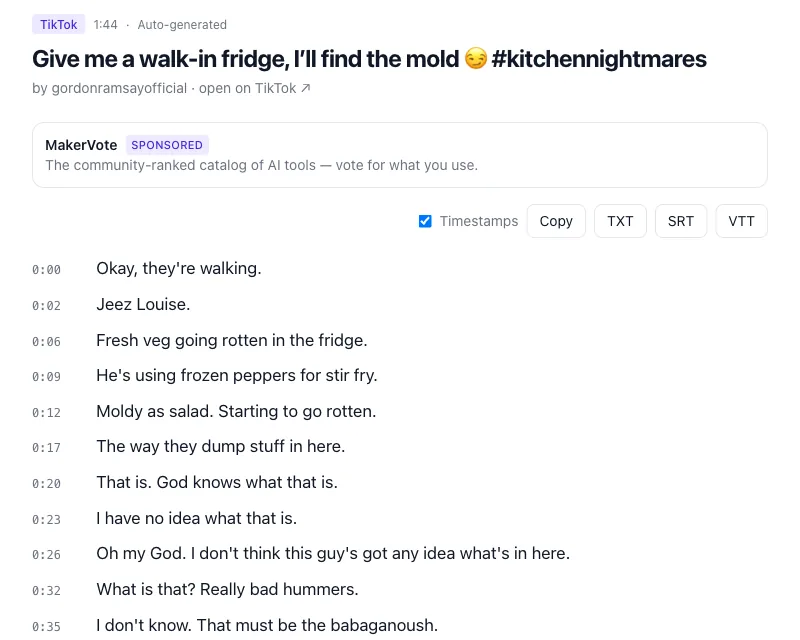
- Get the transcript — Drop the link into the box below and press Get transcript. ClipToTranscript looks for the captions TikTok already has for the video first: the ones the creator turned on, or TikTok's own automatic track. When there are none, and the video is 10 minutes or shorter, it transcribes the audio itself, which usually takes 10–60 seconds. The label at the top of the result tells you which happened: Captions when the creator's captions were used, Auto-generated otherwise.
- Copy the text or download it — Every line of the result carries its start time, handy for finding a moment again. Untick Timestamps if you want the words alone, then press Copy, or save a file: TXT for notes and documents, SRT or VTT when you need subtitles with the timing kept. The file is named after the video.
Paste the TikTok link here
The result opens on its own page with the Copy and download buttons; YouTube and X links work in the same box. The TikTok transcript generator offers the same box on a page of its own; the how to transcribe a video guide covers X, YouTube and video files on your phone.
Read the captions inside TikTok
TikTok can show two kinds of captions. Creator captions are the ones the creator turned on and checked before posting (creators: the captions guide shows where). Auto-generated captions are TikTok's own speech recognition, added to eligible videos whether the creator did anything or not, and each viewer chooses whether to see them: in the app, tap the Share button beside the video, then Captions in the bottom row, and switch Show captions on or off; on tiktok.com the ⋯ menu at the top of the player has a Captions entry. Either kind appears as a line or two over the picture, and tapping the caption in the app expands it so you can read more at once. What you cannot do is select it: there is no long-press, no copy and nothing to save, in the app or on tiktok.com. Reading along is all TikTok offers, fine with the sound off and no use when you need the words in a document. That is where the link route above comes in, whether the video shows captions or not.
Caption text vs the spoken words
On TikTok the word caption means two things, and mixing them up causes most of the confusion around copying text. In everyday TikTok talk the caption is the description under the video (TikTok's own help calls it the description): the text the creator typed when posting, usually a sentence and some hashtags, sometimes only hashtags. That text is easy to copy on tiktok.com, like any text on a web page, but it is not what was said in the video. The captions in the accessibility sense are the spoken words on screen, and those are what a transcript contains. So when a post's description is a hashtag and you want the story the creator tells, copying the description gets you nowhere; you need the transcript. The two also differ in how far you can trust them: the description is exactly what the creator wrote, while captions and transcripts are speech recognition unless the creator corrected them, so check names and numbers against the audio before you quote them.
Videos without captions: when a TikTok has no caption track of any kind, ClipToTranscript runs its own speech recognition on the audio (an open-source model on its own servers) for videos up to 10 minutes long. Longer uncaptioned videos are not supported yet; videos with captions have no length limit. A music-only video or a lip-sync has no speech to transcribe, and the tool says so rather than inventing text.
Questions
- Can I copy text from a TikTok?
- Not the captions: TikTok draws them into the player, with no way to select them. The description can be copied on tiktok.com like any web text, but it is not the transcript. For the spoken words, paste the link into the tool above and press Copy.
- Does it work for private or friends-only videos?
- No, and no tool that works without your login can: TikTok only serves those videos to the accounts the creator chose. Anything public works, including videos from accounts you do not follow; a public video that comes back as unavailable has usually been removed or made private since you copied the link.
- Does the transcript have timestamps?
- Yes. Every line shows its start time on the result page; untick Timestamps to hide them when you only want the words. SRT and VTT downloads always keep the timing, and TXT keeps it while the box is ticked.
- Which languages work?
- Whatever is spoken in the video. Captions come back in the languages TikTok has for it, and some videos carry TikTok's machine-translated track as well, shown as its own tab and labelled Translated. When the audio is transcribed instead, the text comes back in the language that is spoken.
- Is it free?
- Yes. You need no account and get no watermark, and there is nothing to install; the labelled sponsor cards on the result page pay for the site.