Transcribe a video from TikTok, YouTube or X
- Copy the video link — On TikTok, open the video, tap Share and then Copy link (the short vm.tiktok.com links from the app work too). On YouTube, copy the address from the address bar or use Share, then Copy — youtu.be, Shorts, live and embed links all work. On X, open the post with the video, tap Share and then Copy link.
- Paste it and press Get transcript — Paste the link into the box below and press Get transcript. ClipToTranscript first looks for captions the platform already has for the video — TikTok's, or YouTube's manual and auto-generated tracks — and shows them within seconds. When there are none, and always for X, which publishes no captions, it transcribes the audio with an open-source speech-recognition model on its own servers, usually in 10–60 seconds, for videos up to 10 minutes long.
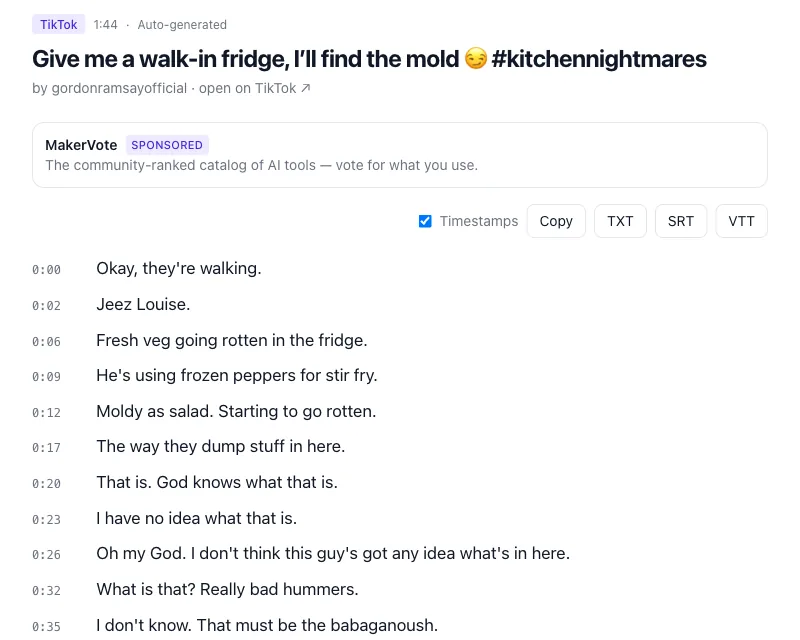
- Copy the text or download it — The transcript appears with a start time on every line. Tick or untick Timestamps, then press Copy to put the text on your clipboard, or download it as TXT (plain text), SRT or VTT (subtitle files with the timing).
Transcribe a TikTok, YouTube or X video
Paste the link below. It works for TikTok, YouTube (Shorts included) and X videos — captions first, speech recognition when there are none.
A video file on your computer or phone
ClipToTranscript works with links only — there is no upload — so a recording on your phone, a screen capture or a downloaded file needs another route. Three free options work. The simplest: upload the file to YouTube (in YouTube Studio, Upload videos, with Visibility set to Unlisted, or Private if the recording is personal). YouTube adds automatic captions, usually within minutes and sometimes hours; then open the transcript panel on the watch page (the YouTube transcript guide shows where it hides) or download the caption file in YouTube Studio under Subtitles, the track's ⋮ menu, Download. The most capable: an open-source Whisper app, which runs OpenAI's speech-recognition model on your own machine, offline, and writes TXT, SRT or VTT from a file of any length. Buzz (Windows, macOS, Linux) and Vibe are free and open source, and MacWhisper has a free tier on macOS; expect a one-time model download of several hundred megabytes and, on an older computer, transcription slower than real time. For reading along rather than saving: Live Captions in Windows 11 (Settings, Accessibility, Captions, or Win+Ctrl+L), Live Caption on Android (Settings, Accessibility, Live Caption, then the button under the volume slider) and Live Captions on macOS (System Settings, Accessibility, Live Captions, on Macs with Apple silicon) show the words on screen as the video plays, in a limited set of languages, and save nothing.
Captions vs speech recognition: what accuracy to expect
Where the text comes from decides how much checking it needs. Captions the creator typed or uploaded are the best case: punctuation, correct names, sometimes speaker labels. Platform auto-captions, such as YouTube's, are speech recognition run by the platform: usually right on clear, single-speaker speech, and weakest on names, brands, jargon, numbers, strong accents, people talking over each other and speech under loud music, with little or no punctuation. Speech recognition run on ClipToTranscript's servers, which is what you get for X videos and for any video without captions, is the same kind of thing with the same strengths and weaknesses. None of them is a court transcript. A good rule: use the text as it is for search, notes and a summary; check it against the audio before you quote it, publish it or rely on a number in it.
Accuracy tips: the cleaner the audio, the better the text. One speaker at a time, a microphone close to the mouth and no music bed help more than anything else. Names, brand names and unusual words are what any speech model mishears most, so search the transcript for them and fix them against the video — the timestamps take you straight to the spot. Numbers deserve the same check: "fifteen" and "fifty" sound alike.
What you can do with the text
A transcript turns a video into something you can search, quote and reuse. Ctrl+F through an hour-long talk to find the passage you remember. Pull quotes for notes, an article or a study, with the timestamp as your reference. Paste the plain text into an AI assistant for a summary, a list of key points or a translation; a transcript is far cheaper to process than a video. Download SRT or VTT to add subtitles to a video you are editing or re-uploading. And for anything you publish, credit the creator, quote rather than copy, and get permission when the words are not yours — a transcript does not change who owns them; see the Terms.
Questions
- How long does it take?
- Seconds, when the platform already has captions, whatever the length of the video. When the audio has to be transcribed — every X video, and any video without captions — allow 10–60 seconds; the video must be 10 minutes or shorter.
- Which languages does it support?
- Captions come back in every language the platform has for that video; if there are several tracks, switch between them with the language tabs above the text. When the audio has to be transcribed, the text comes back in the language spoken in the video.
- Is it free?
- Yes: no account, no watermark, nothing to install. Sponsor cards, always labelled as such, pay for the site.
- Does it work for private or unlisted videos?
- Private videos, friends-only TikToks and posts from protected X accounts do not work: the tool can only read what anyone with the link can watch, and it never asks for your login. Unlisted YouTube videos usually work for that same reason.
- Can it transcribe an Instagram Reel?
- No. Instagram is not supported — TikTok, YouTube (including Shorts) and X are the three platforms. For an Instagram video you own, the options for a local file above apply.